43I want to import my own pattern PDFs
Add PDFs from your device, email, or other apps into Stash2Go
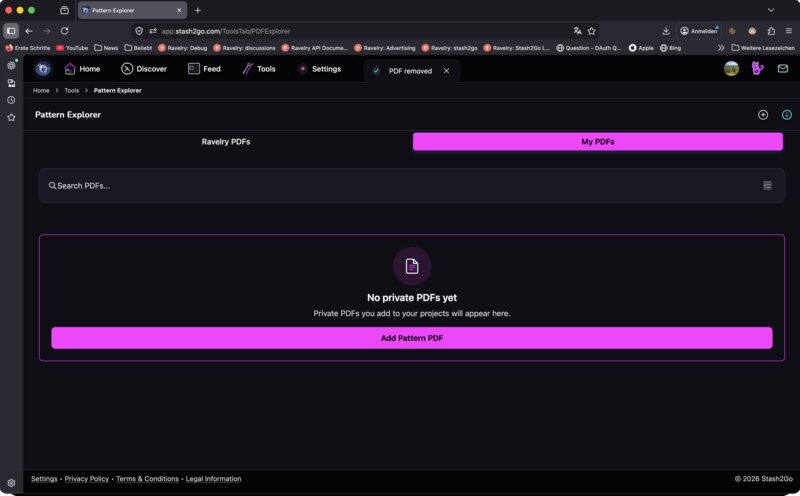
Open the PDF Explorer from Tools and switch to the My PDFs tab. Tap Add Pattern PDF to browse your device's files or enter a URL. The file is imported into your private PDF library alongside your Ravelry purchases.
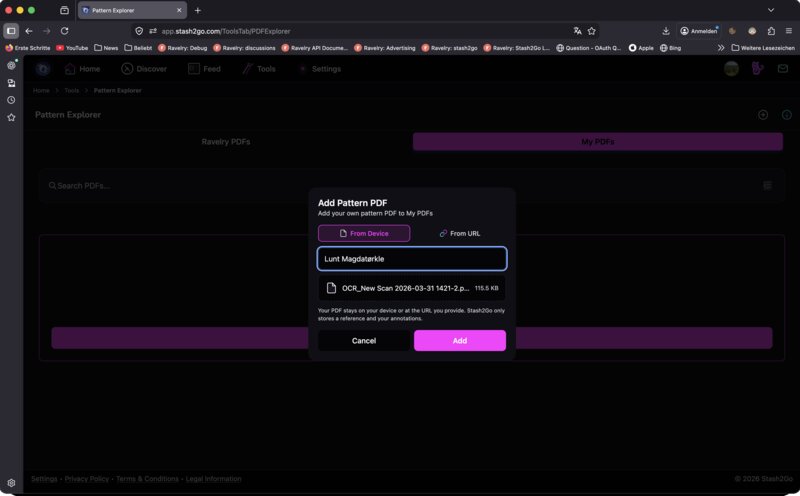
Choose to import From Device or From URL. Give your PDF a name, select the file, and tap Add. You can also use the system share sheet from any app — open a PDF in Mail, Files, or Safari and share it to Stash2Go.
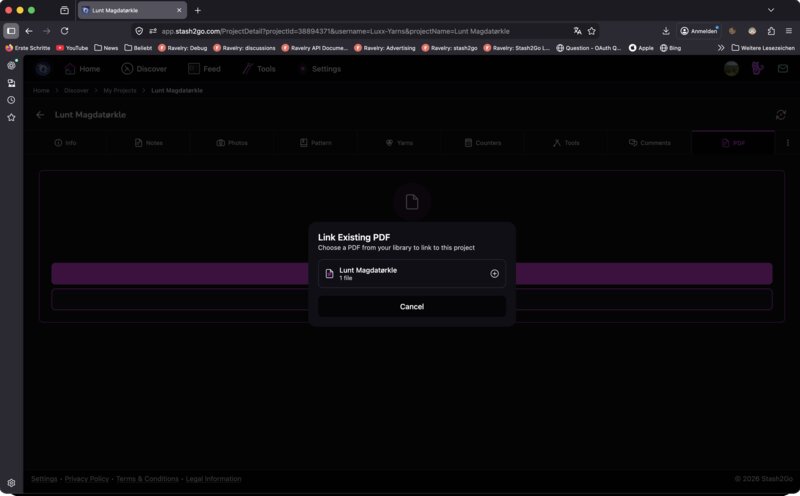
Open a project's PDF tab and tap Link Existing PDF to connect an imported PDF. The PDF will appear in that project for quick access while you work. You can also add new PDFs directly from the project.
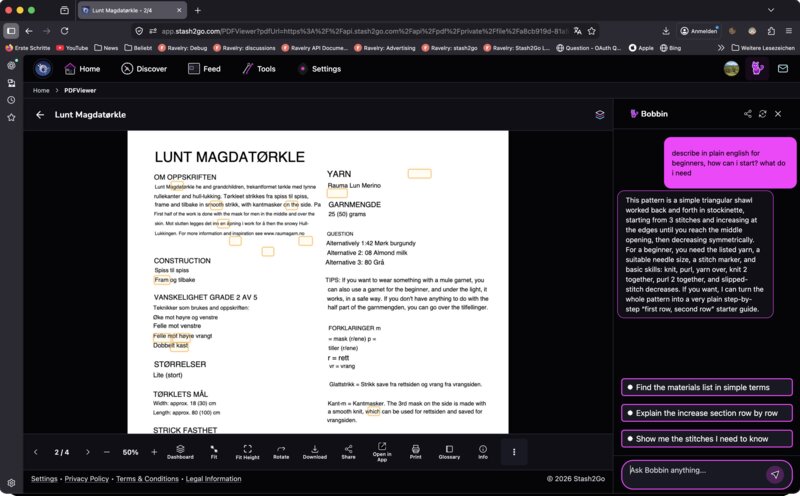
Imported PDFs work with all Smart Reader features — add reading guides, mark chart regions, track rows, and take notes. You can even ask Bobbin for help understanding the pattern while you read.
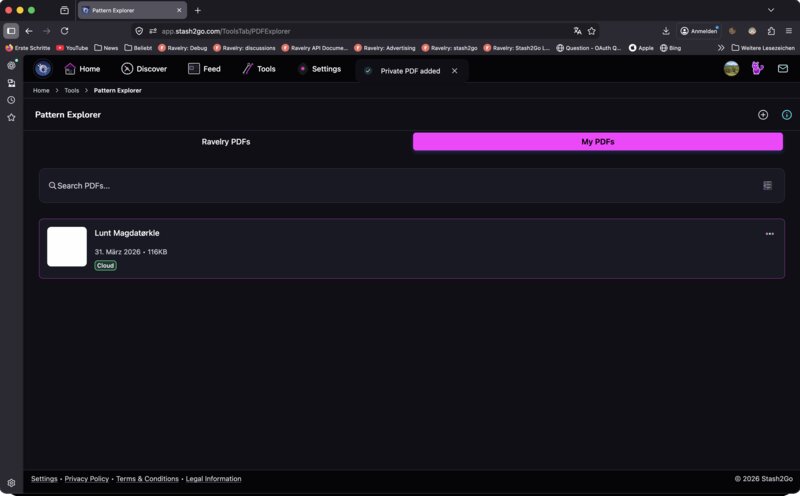
Your imported PDFs appear in the My PDFs tab of the PDF Explorer. Tap the menu on any PDF to manage cloud backup, delete, or re-download from your cloud storage if you clear local files.
Available on iPhone, iPad, and Android