21I want to read my pattern PDFs
View purchased PDFs, bookmark pages, and read alongside your project
Most knitting and crochet patterns come as PDF files. Reading a PDF on your phone or tablet while knitting means constantly scrolling, losing your place, and juggling between the pattern and your row counter. Stash2Go's PDF Smart Viewer solves this by combining your pattern, markers, guides, chart detection, row counters, and notes into one integrated workspace.
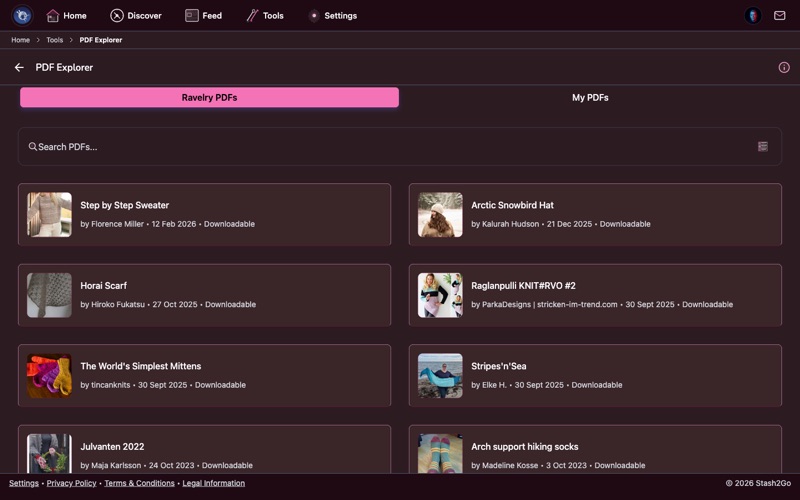
Navigate to Tools → PDF Explorer. This shows all pattern PDFs available in your Ravelry library - patterns you've purchased or downloaded. Each entry shows the pattern cover, title, designer, and when it was added.
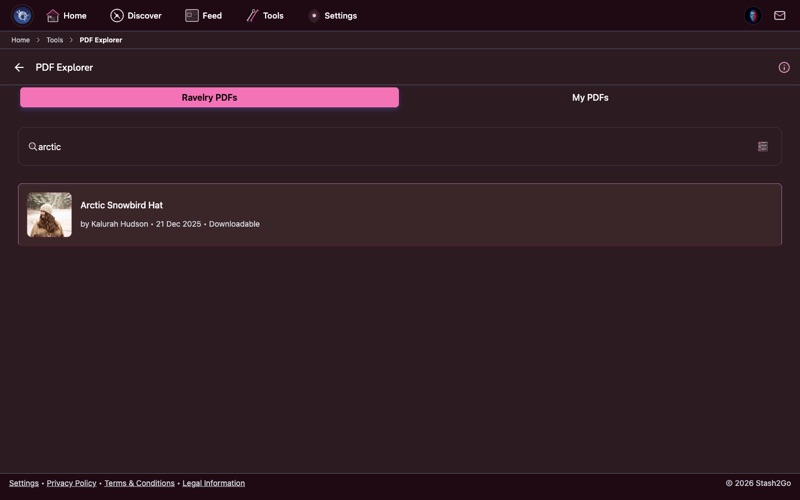
Use the search bar to find PDFs by pattern name or designer. Switch between list, simple, grid, and gallery view layouts to browse your collection the way you prefer. If you have a large library, search is the fastest way to find the pattern you need.
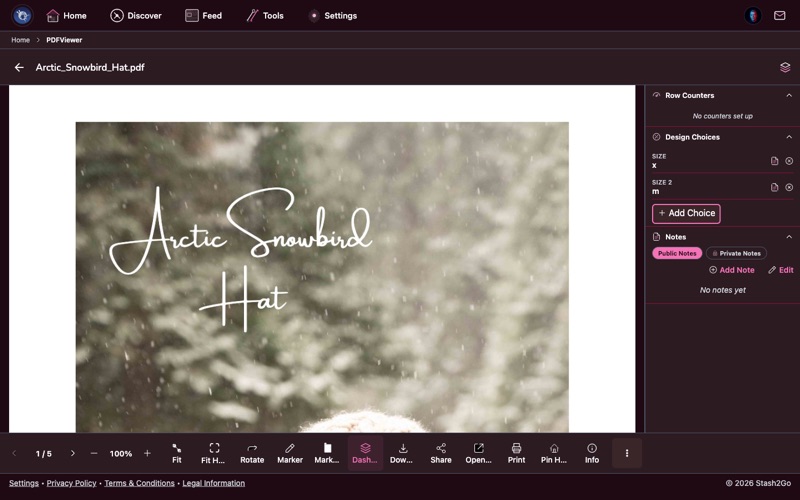
Tap any PDF to open it in the Smart Viewer. This is more than a simple PDF reader - it's a knitting workspace. Pinch to zoom, swipe to turn pages, and the viewer remembers your last position. The toolbar at the bottom gives you quick access to page navigation and zoom controls.
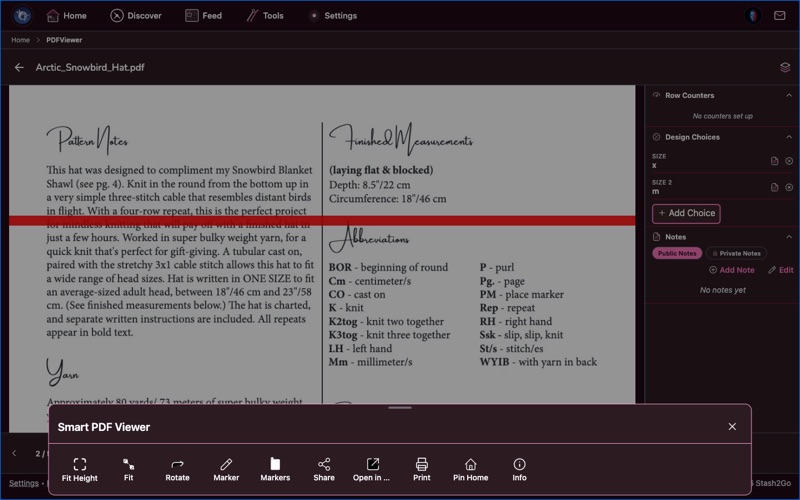
The bottom toolbar contains everything you need while knitting. From left to right: page arrows and page counter for navigation, zoom controls for adjusting magnification, and tool buttons for markers, chart scanning, PDF switching, and more. Tap the menu button at the right to see all available tools.
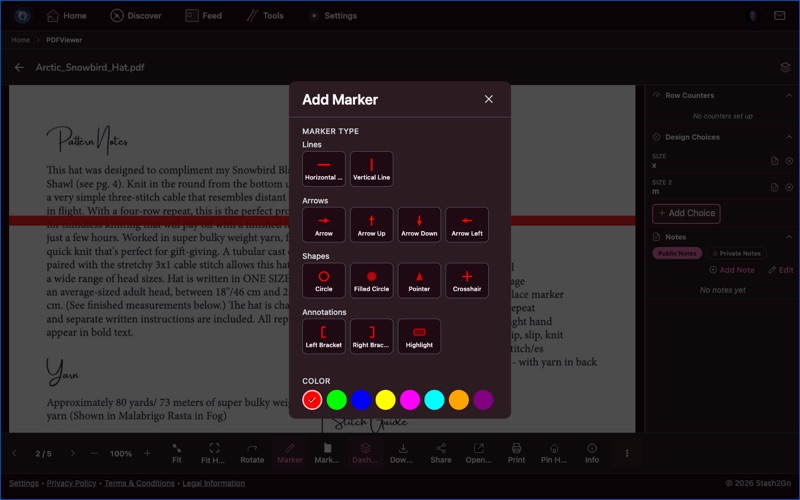
Open the Markers tool to place visual guides on your pattern. Choose from horizontal lines, vertical lines, arrows, circles, pointers, crosshairs, brackets, and highlight rectangles. Pick a color at the bottom so different markers stand out from each other - for example, red for your current row and blue for section boundaries.
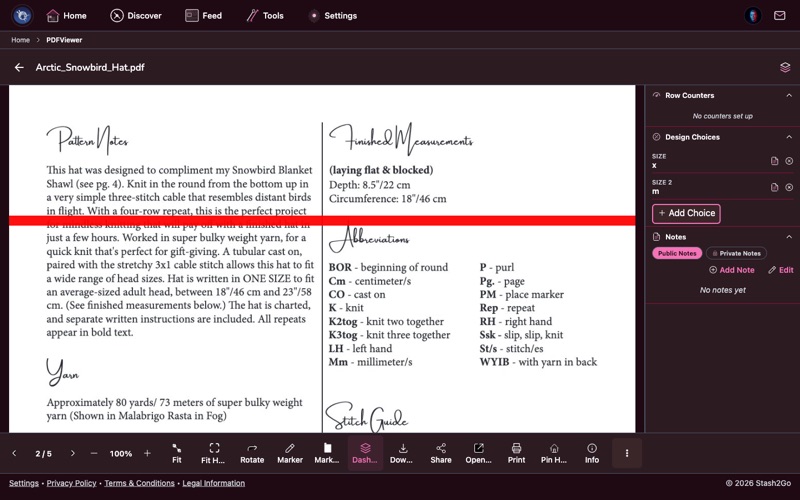
After selecting a marker type, tap anywhere on the PDF to place it. Markers persist across sessions and sync to your Ravelry account, so they're still there when you come back tomorrow or switch devices. Long-press a marker to change its color, type, or delete it.
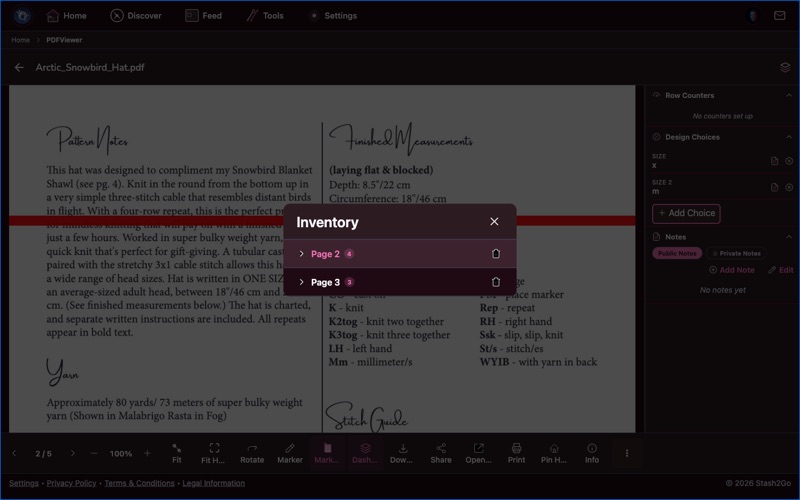
The Marker Inventory lists every marker you've placed, organized by page. Tap a page number to jump directly to that location - this is invaluable for patterns where you need to flip between the chart on page 3, the written instructions on page 5, and the schematic on page 8. You can also edit colors and delete markers from here.
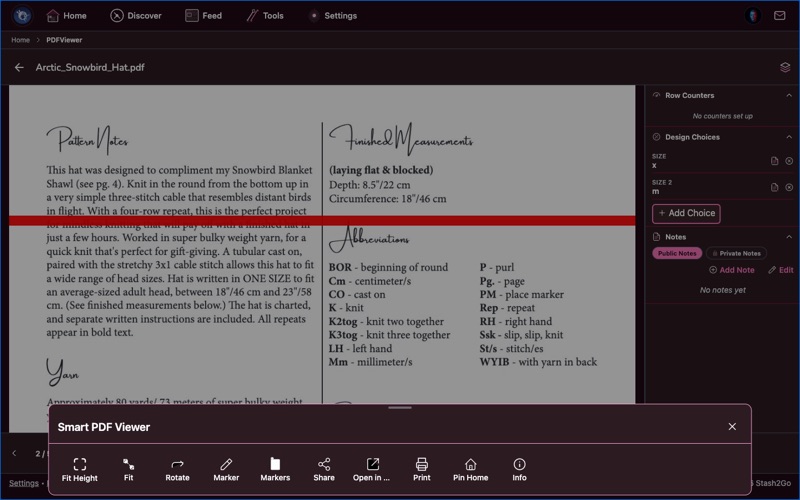
Open Charts from the toolbar to scan your PDF for knitting charts and tables. The scanner analyzes images and vector paths to locate chart regions, then shows how many rows were detected and a confidence score. Once detected, chart rows appear as toggleable overlays on the PDF - tap a row to mark it as completed, giving you visual row-by-row progress tracking directly on the chart.
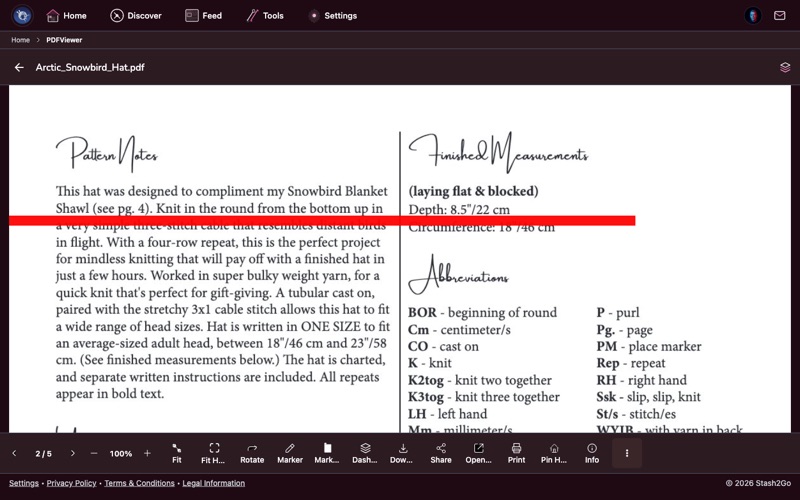
Tap the layers icon in the header to open the Knitting Dashboard alongside your pattern. This side panel gives you quick access to your project's row counters (with increment/decrement controls), design choices (size, yarn, color decisions), and notes (both public and private). On tablets, the dashboard sits beside the PDF; on phones it takes the full screen.
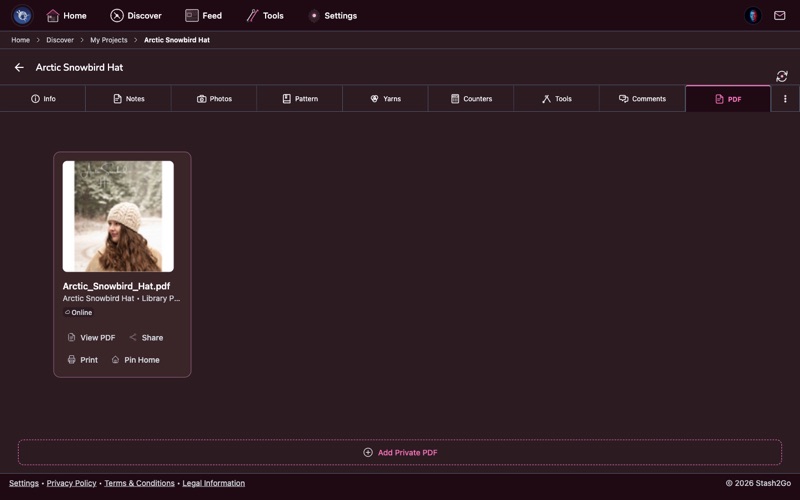
You don't always need to go through the PDF Explorer. When a project has a linked pattern with a PDF in your library, a PDF tab appears on the project detail page. Open it for instant access to the Smart Viewer with your project already linked - your counters, notes, and design choices are ready in the side panel.
The Smart Pattern Reader has a full sidebar with row tracking, shaping guides, stitch markers, notes, voice commands, and more. Explore the dedicated guides:
Smart Pattern Reader Overview · Setup & Charts · Row Tracking · Shaping Guides · Annotations & Markers · Notes & Design Choices · Voice Commands
Available on iPhone, iPad, Android, and web at app.stash2go.com