11I want to share a project video
Create animated project slideshows and share to social media
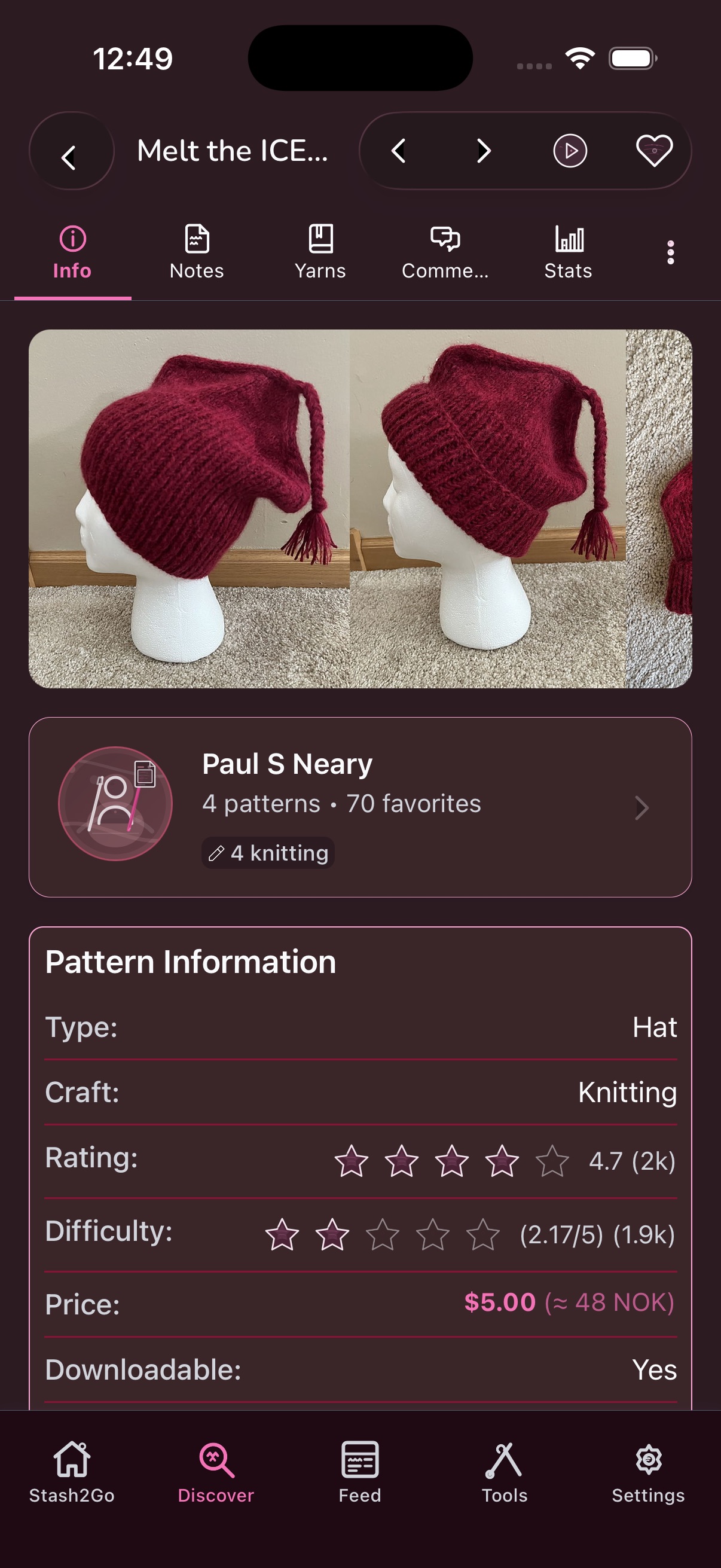
Navigate to any pattern detail page. You'll see the pattern photos, designer info, and all the details about the pattern.
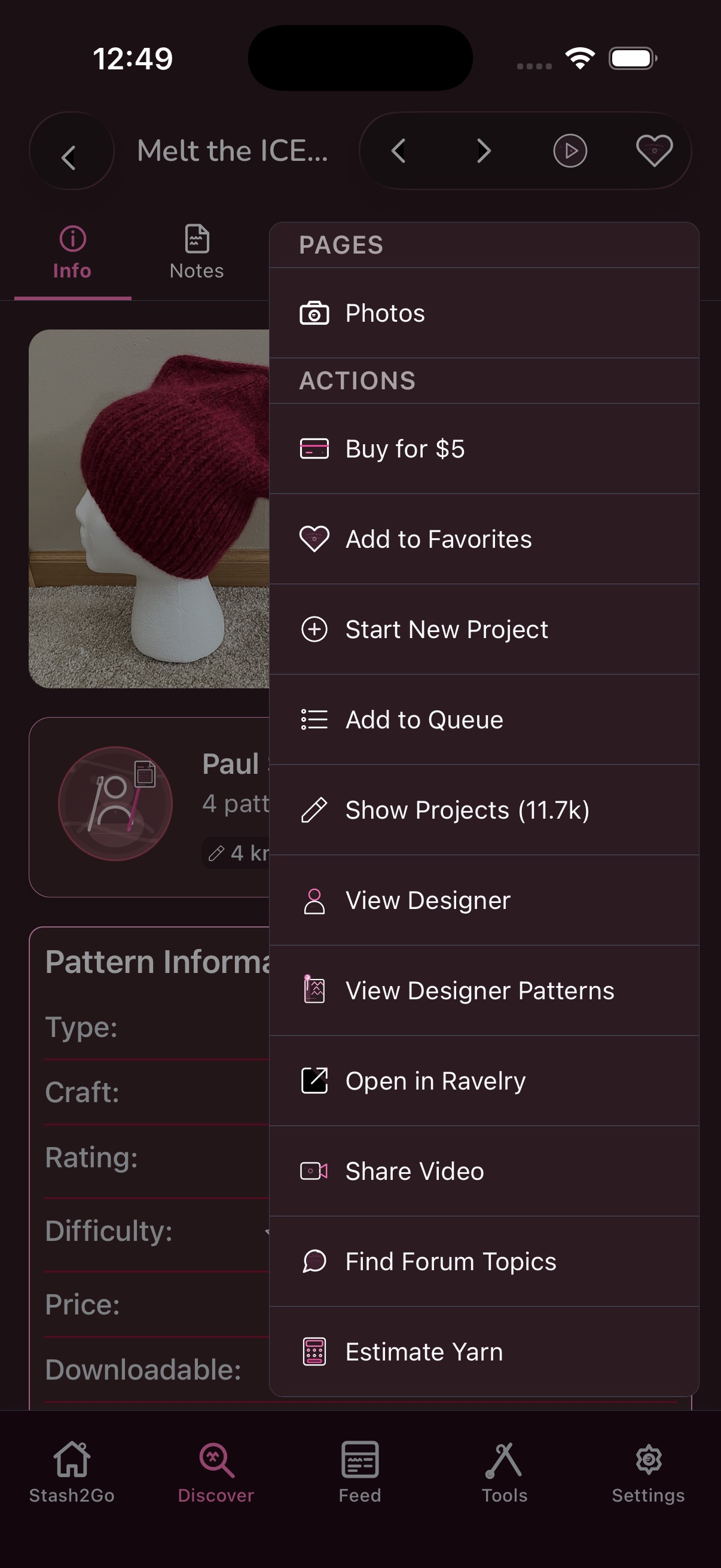
Tap the actions menu (top right) and select “Share Video”. This launches the video creation wizard, which guides you through each step with a progress bar at the top.
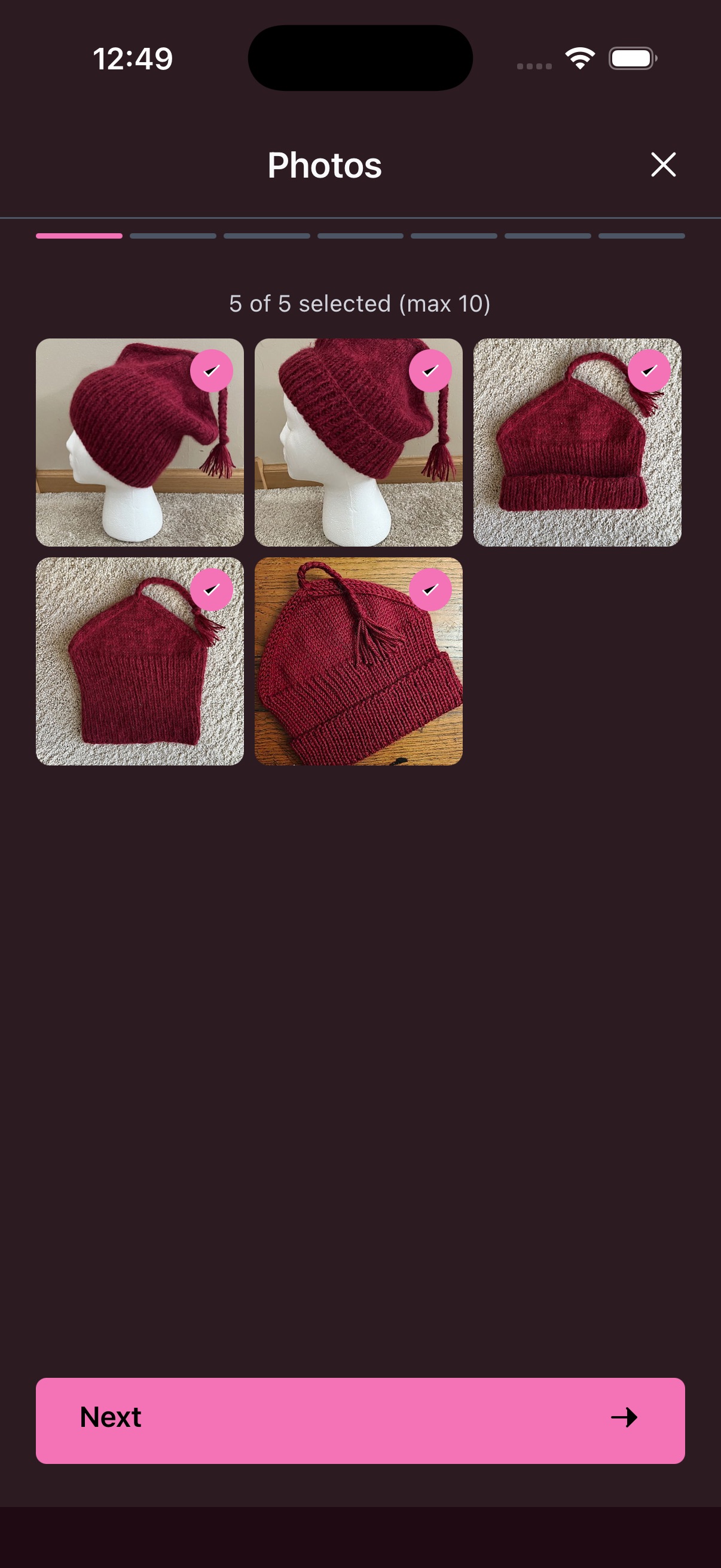
Choose which photos to include - up to 10 photos per video. Tap to select or deselect. Selected photos show a badge with their order in the slideshow.
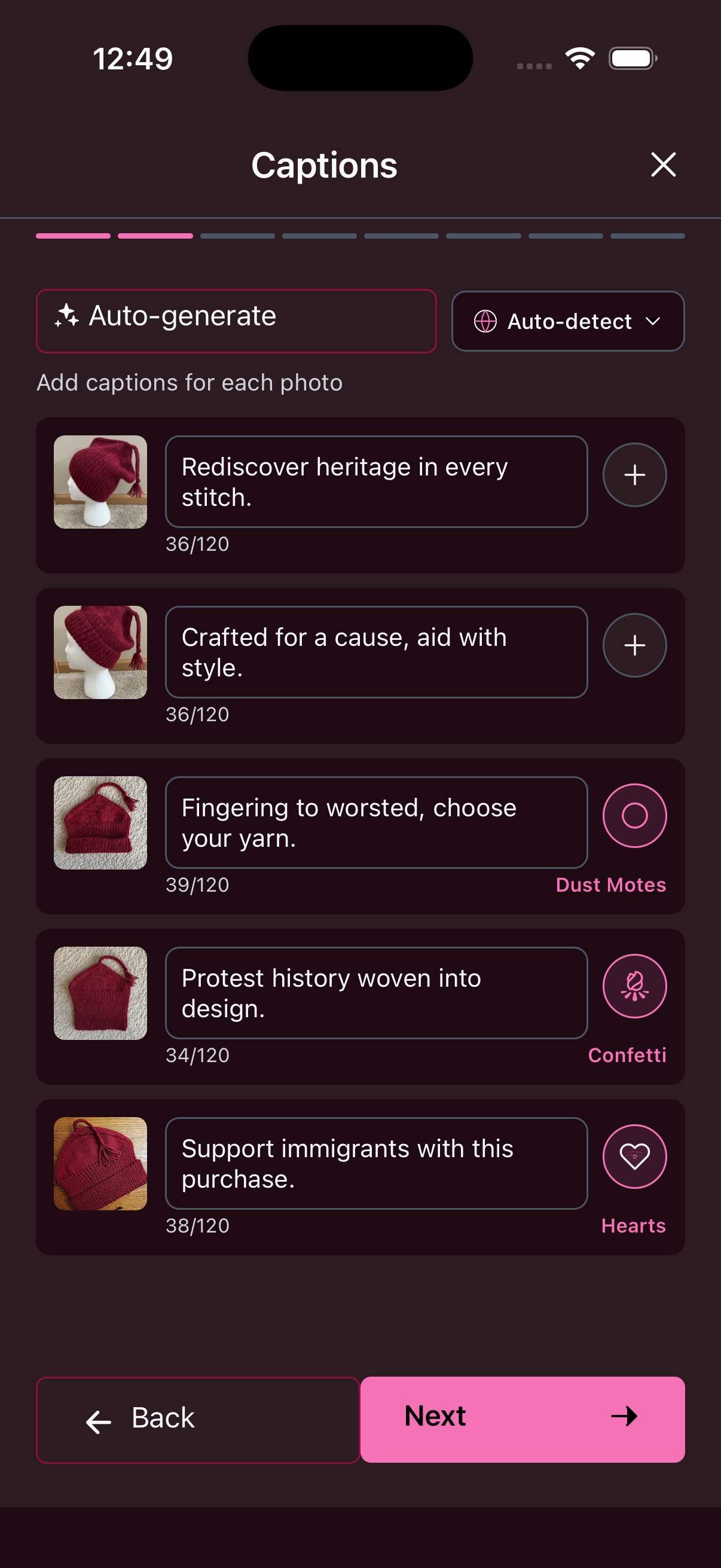
Write a caption for each photo (up to 120 characters). Tap “Auto-generate” to let the app write them for you, or type your own. Each photo also gets a visual effect - choose from Dust Motes, Confetti, Hearts, and more by tapping the effect icon.
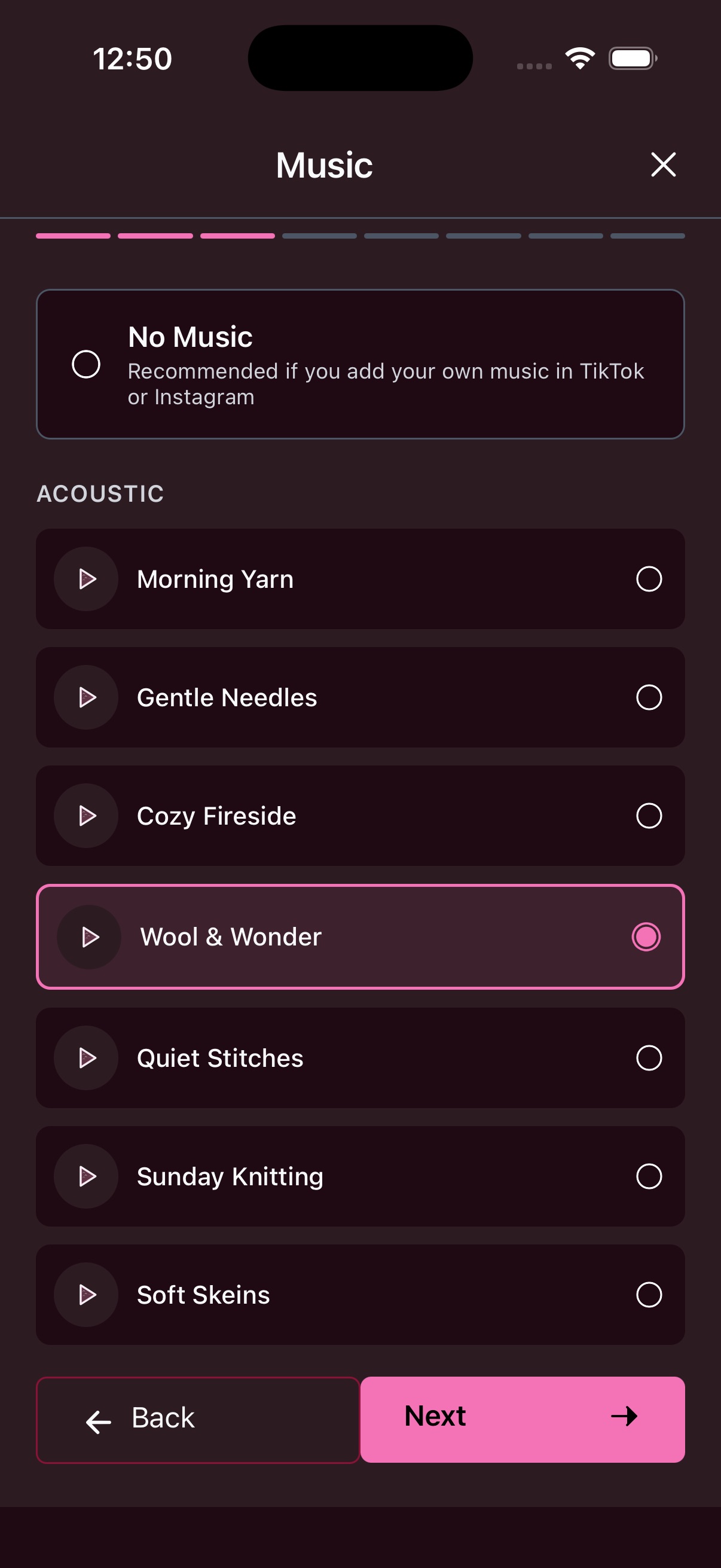
Pick background music from the built-in acoustic library - craft-themed tracks like Morning Yarn, Gentle Needles, Cozy Fireside, Wool & Wonder, Quiet Stitches, Sunday Knitting, and Soft Skeins. Preview each before selecting. Choose “No Music” if you plan to add your own in TikTok or Instagram.
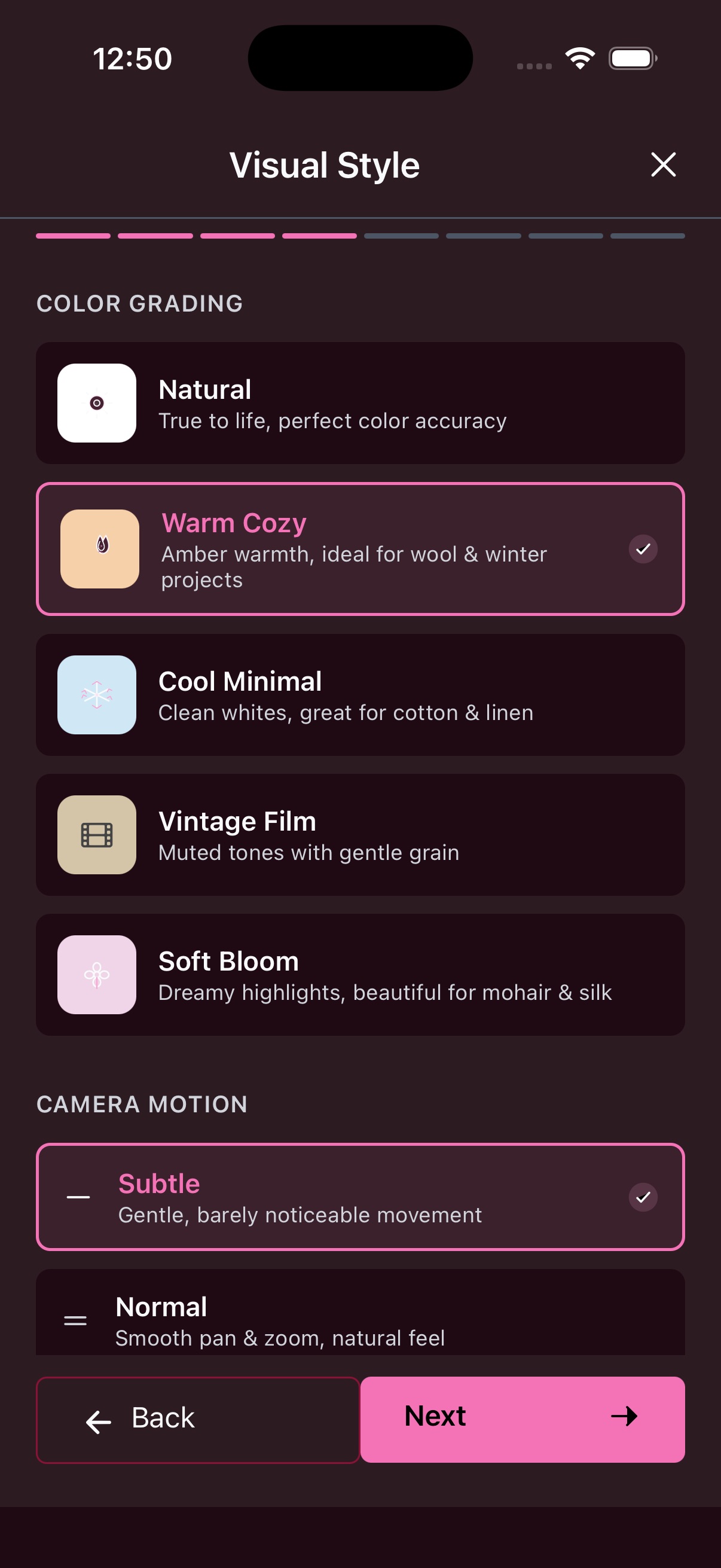
Color grading - Natural (true to life), Warm Cozy (amber warmth for wool & winter), Cool Minimal (clean whites for cotton & linen), Vintage Film (muted tones with gentle grain), or Soft Bloom (dreamy highlights for mohair & silk).
Camera motion - Subtle (barely noticeable) or Normal (smooth pan & zoom).
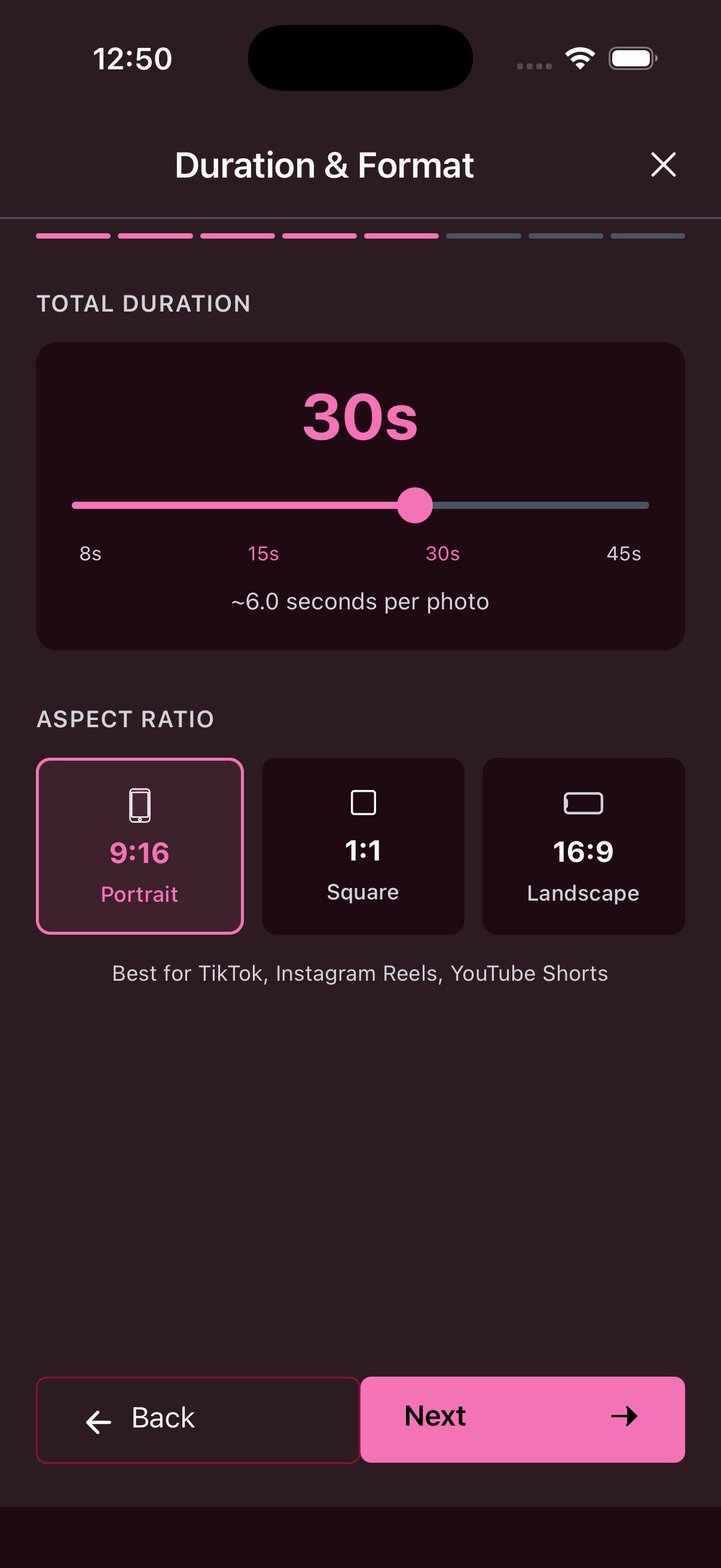
Drag the slider to set total duration from 8s to 45s. The app shows seconds per photo so you can fine-tune the pacing. Then choose your aspect ratio: 9:16 Portrait (TikTok, Instagram Reels, YouTube Shorts), 1:1 Square, or 16:9 Landscape.
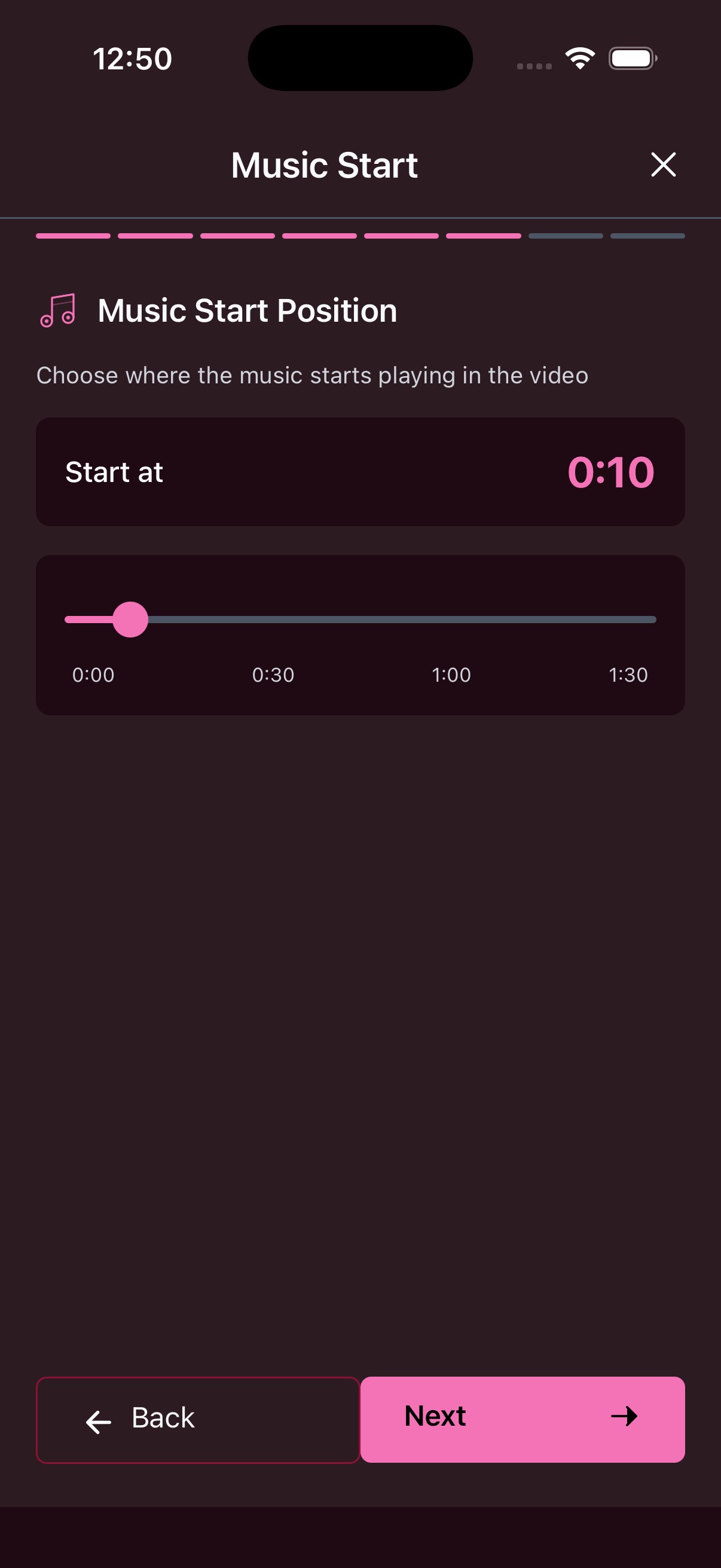
Pick the exact moment in the track where the music begins playing in your video. Drag the slider to find the perfect starting point - great for skipping intros or starting at a particular beat.
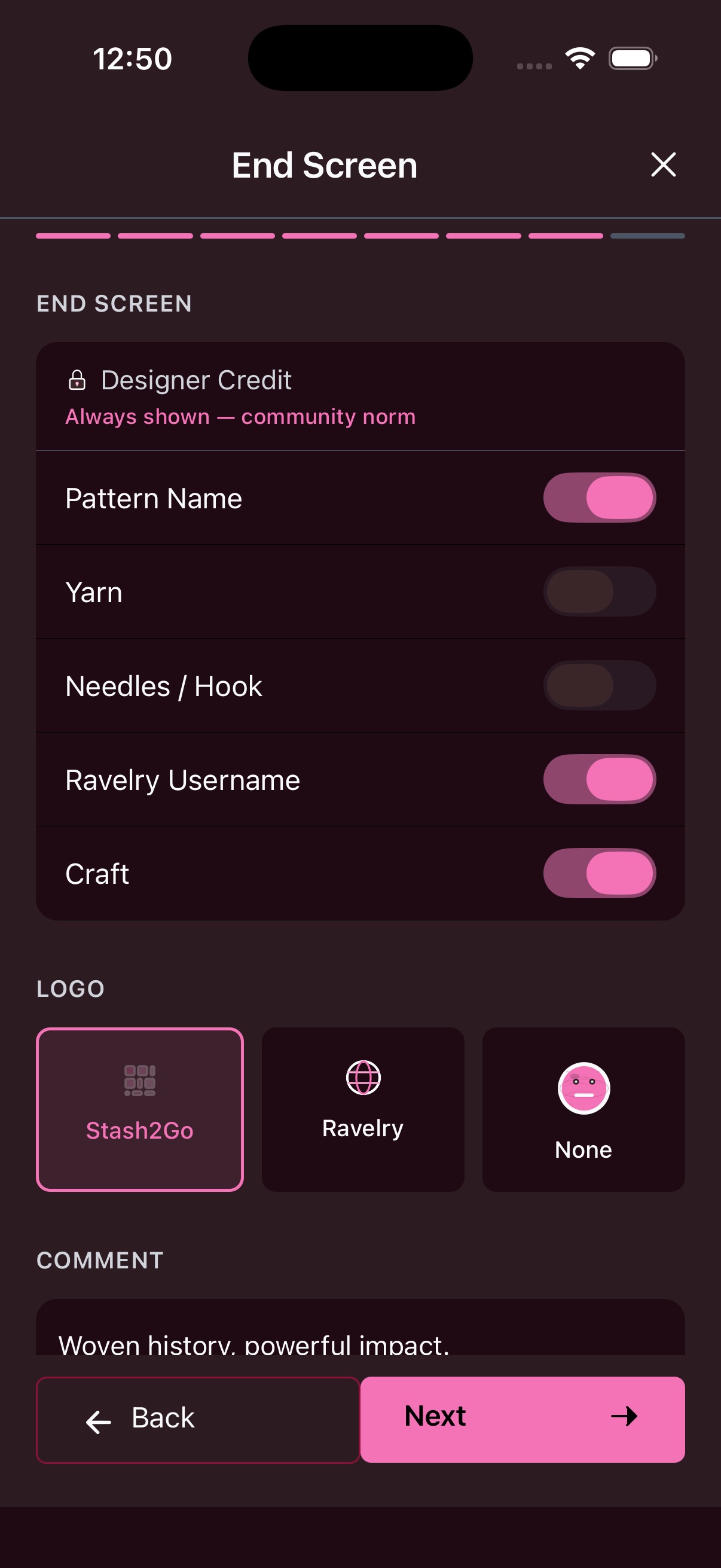
Designer Credit is always shown (community norm). Toggle what else to display - pattern name, yarn, needles/hook, your Ravelry username, and craft type. Choose a logo (Stash2Go, Ravelry, or none) and add a personal comment.
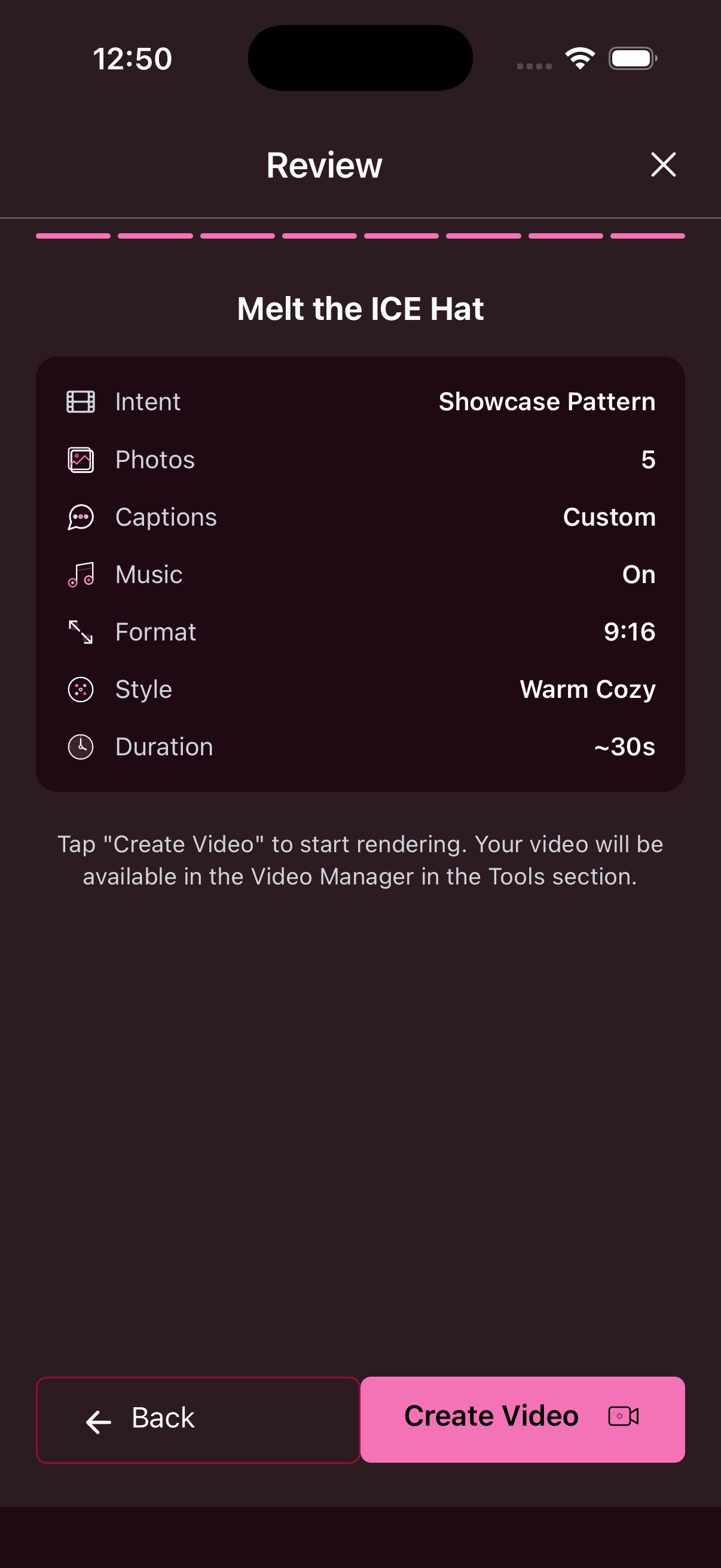
The review screen shows a summary of all your choices - intent, photo count, captions, music, format, visual style, and duration. Tap “Create Video” to start rendering. Your video will be available in the Video Manager under Tools.
Available on iPhone, iPad, Android, and web at app.stash2go.com