13I want to group patterns into collections
Create bundles to organize patterns, yarn, and projects by theme
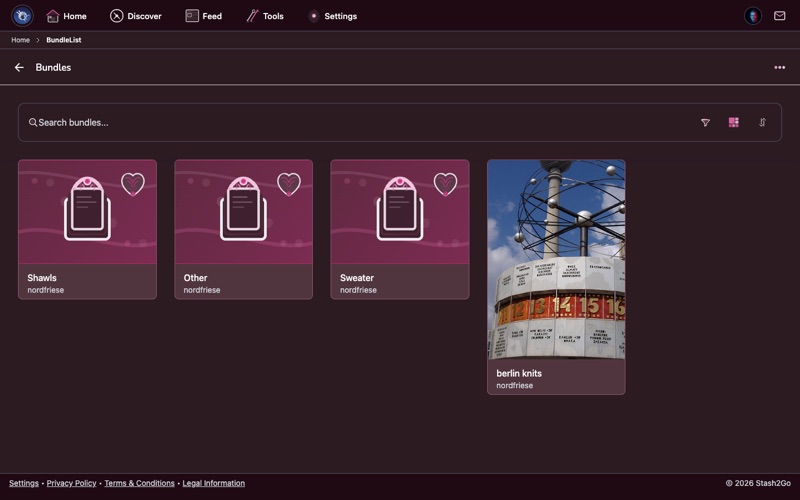
Navigate to Bundles from the Home screen. Your bundles show all the collections you've created and any bundles you've saved from other users.
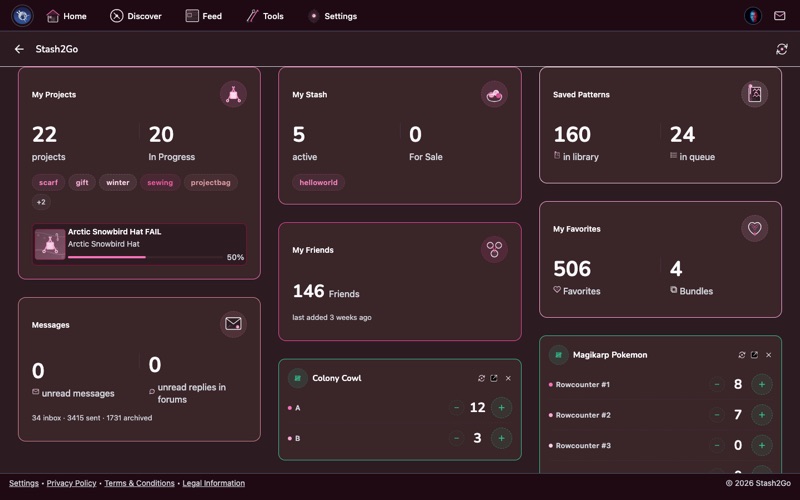
Tap the create button to start a new bundle. Give it a name and optional description - organize by theme (summer knits), recipient (gifts for mom), technique (colorwork), or any way you like.
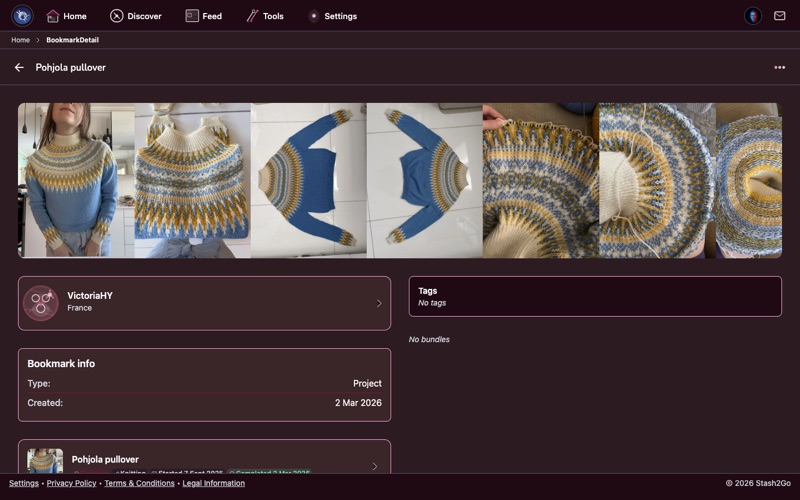
From any pattern detail page, tap the heart icon or choose Add to Favorites from the actions menu. In the favorites modal, select which bundle to add the pattern to - or create a new bundle on the spot.
Open a bundle to see all its patterns at a glance. You can reorder items, remove patterns, or tap any pattern to see its full details.
Inside a bundle, open the menu and choose Select Multiple to enter selection mode. Tap the patterns you want to act on - each selected pattern gets a checkmark. A floating button at the bottom shows how many items are selected.
With patterns selected, tap the floating basket button to open the bulk actions panel. From here you can move the selected patterns to a different bundle or remove them from the current one - all in a single action instead of editing each pattern individually.
Discover bundles created by other Ravelry users. When you find an interesting collection, you can favorite it or use it as inspiration for your own projects.
Available on iPhone, iPad, Android, and web at app.stash2go.com