12I want to plan my next projects
Add patterns to your queue and organize what to knit next
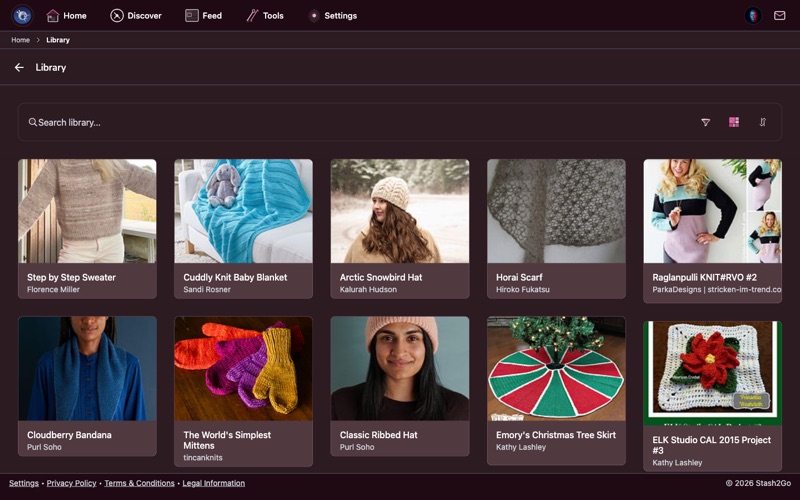
Navigate to your queue from the Home screen. Your queue shows all patterns you've saved to make later. Switch between view layouts - list, masonry grid, or square thumbnails - using the view toggle in the toolbar.
From any pattern detail page, tap the actions menu and choose Add to Queue. You can add notes about sizing, yarn plans, or who it's for.
Sort your queue by queue position (your custom order), date added, alphabetical, start date, or deadline. Use filters to narrow by specific criteria: has pattern linked, has yarn assigned, has notes, has start date, or has deadline.
You can also drag to reorder your queue - tap the reorder button to enter drag mode, then drag items up or down to set your own priority. Your custom order is saved automatically.
Tap any queue entry to see the full details: pattern info, your notes, estimated yarn requirements, and quick links to start a project or find matching yarn.
The Queue Matcher (Beta) scans your queue and stash together, highlighting queue items you already have yarn for. Enable it in Settings → Appearance → Beta Features.
Available on iPhone, iPad, Android, and web at app.stash2go.com