30I want to export my data
Download your project data in CSV, JSON, text, or Excel-compatible formats
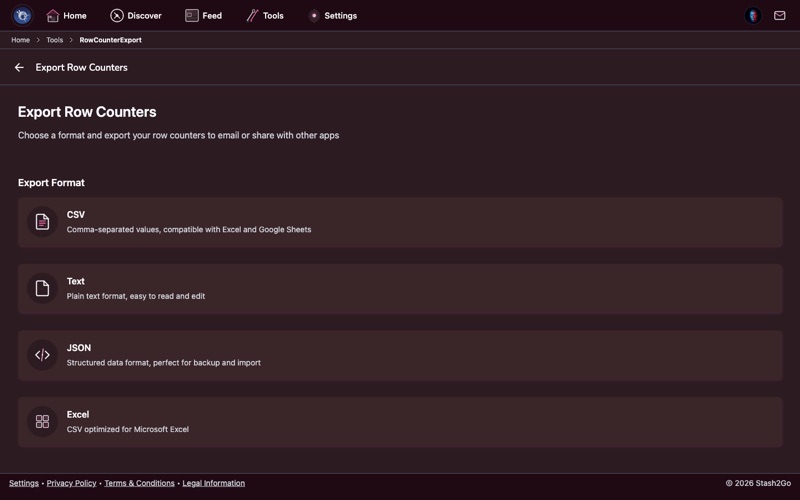
Export options are available in several places: Tools → Export Row Counters for counter data, and Settings → Account for broader data export.
Navigate to Tools → Export Row Counters. Choose your format: CSV (spreadsheet-friendly), JSON (for developers), text, or Excel-compatible export, then download your counting history.
Each format serves a different purpose:
CSV - Comma-separated values, compatible with Excel, Google Sheets, and Numbers.
Text - Plain text, easy to read and share via email or messaging apps.
JSON - Structured data format, ideal for developers or importing into other tools.
Excel - CSV optimized for Microsoft Excel with proper encoding and formatting.
Your export file is generated and ready to download. Save it to your device, cloud storage, or share it via email.
Available on iPhone, iPad, Android, and web at app.stash2go.com