3I know what I'm looking for
Search with filters for craft type, weight, category, and more
A quick walkthrough of pattern search - see how to use filters, sort results, and find the perfect pattern.
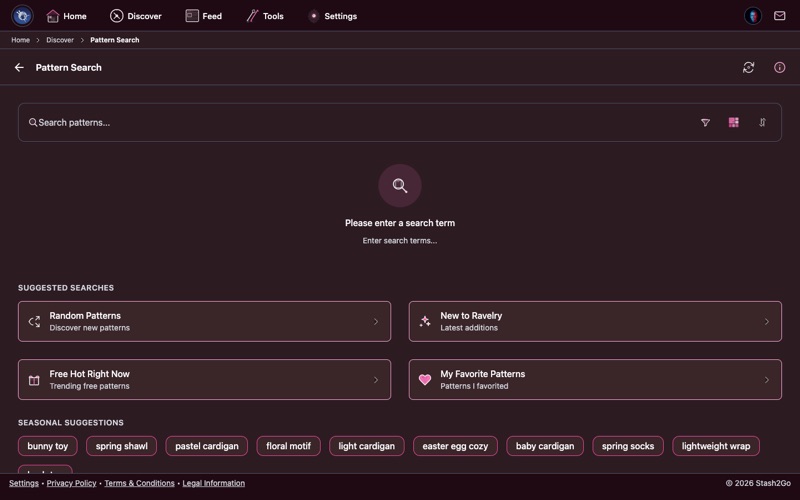
Go to Discover → Pattern Search. You'll see a search bar at the top and a filter button. You can type a keyword to search by name, or jump straight to filters to browse by category.
Craft: Knitting + Weight: Worsted + Category: Sweater to see all matching patterns sorted by popularity.
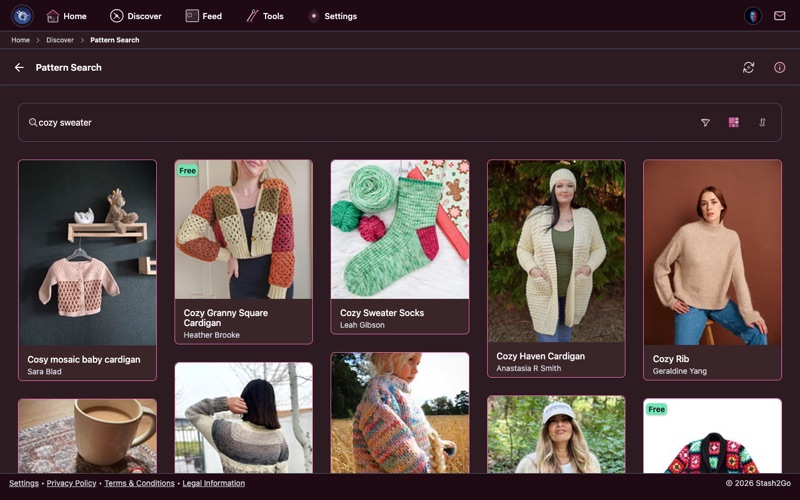
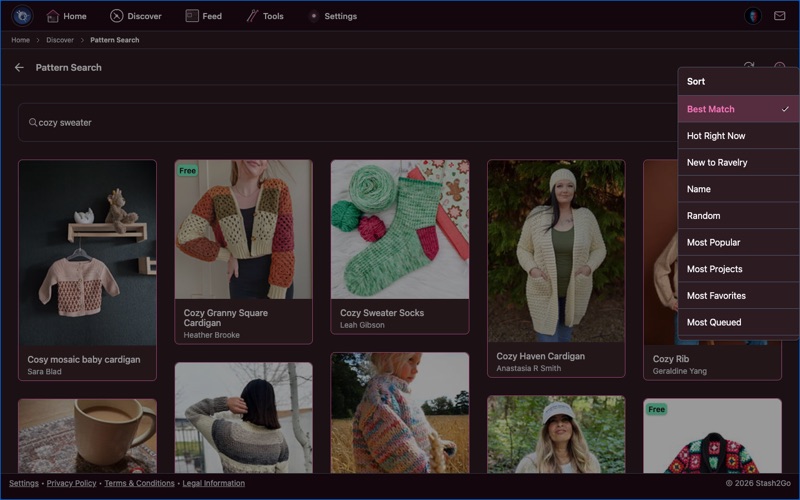
Type a keyword (like a designer name or pattern type) and press search. Sort your results with the sort button:
- Best Match - Ravelry's relevance ranking (default when searching by keyword)
- Most Popular - Sorted by number of projects (default when browsing)
- Most Favorites - Patterns with the most saves
- Recently Added - Newest designs first
- Name A-Z - Alphabetical order
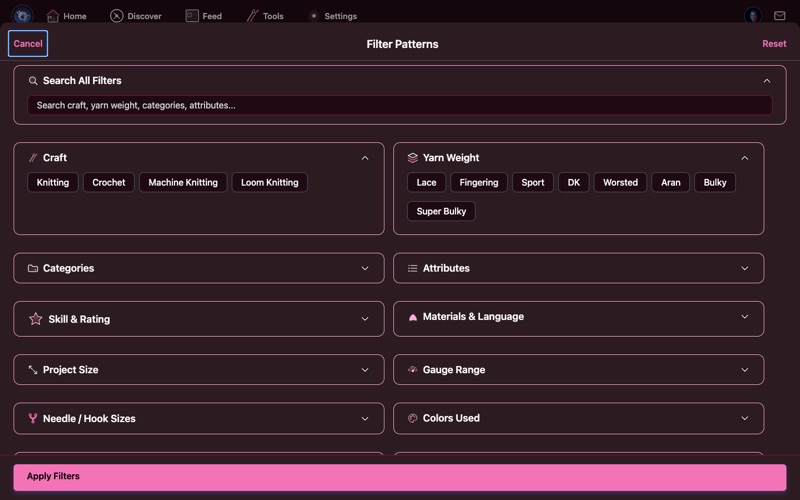
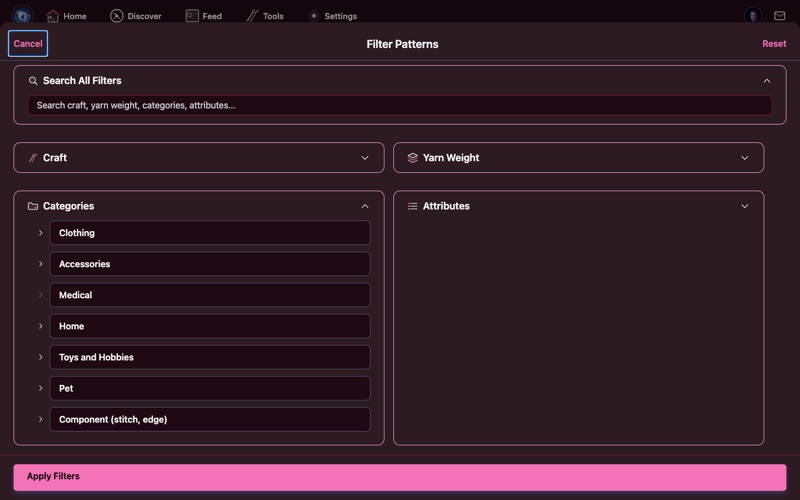
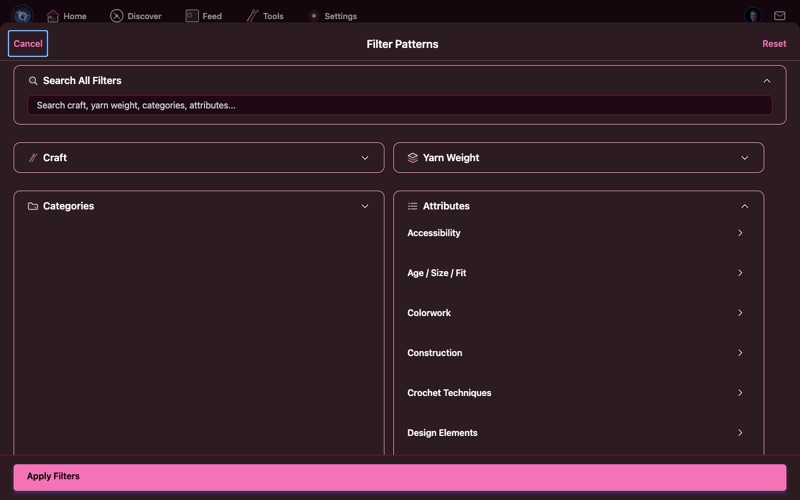
Tap the filter icon to open the full filter panel. Here's everything you can filter by:
- Craft - Knitting, Crochet, Machine Knitting, Loom Knitting
- Yarn Weight - Lace, Fingering, Sport, DK, Worsted, Aran, Bulky, Super Bulky
- Categories - Sweater, Hat, Shawl, Socks, Blanket, Toy, and many more (hierarchical tree)
- Attributes - Worked flat, in the round, seamless, top-down, bottom-up, colorwork, etc.
- Skill & Rating - Difficulty level and pattern rating
- Materials & Language - Fiber type (wool, cotton, alpaca...) and pattern language
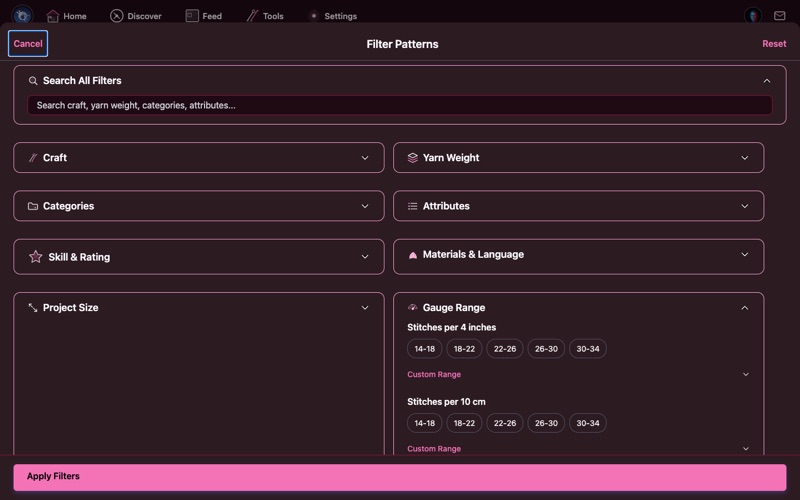
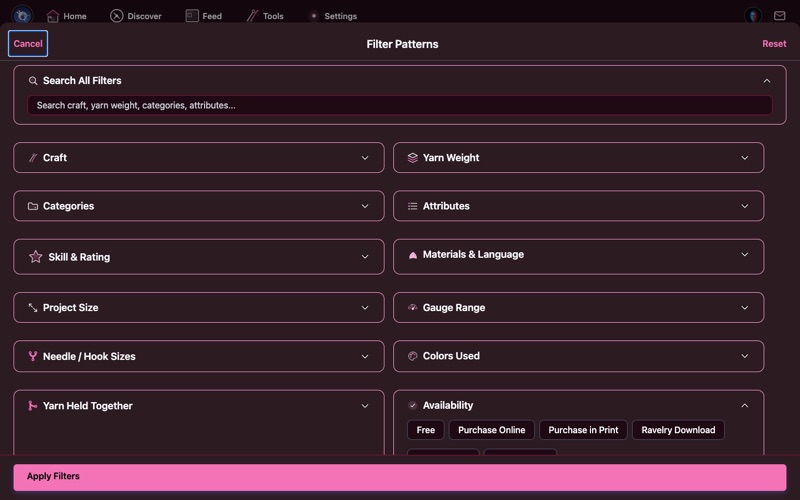
- Project Size - Yardage or meterage range
- Gauge - Stitches per 4 inches (or 10 cm) with preset ranges
- Needle/Hook Size - Filter by specific needle or hook size in mm
- Colors Used - Single color, 2-color, 3+, up to 6+
- Yarn Held Together - Single, 2 yarns, 3 yarns
- Availability - Free, purchasable, in your library, discontinued
- Notebook - Filter to patterns you've favorited
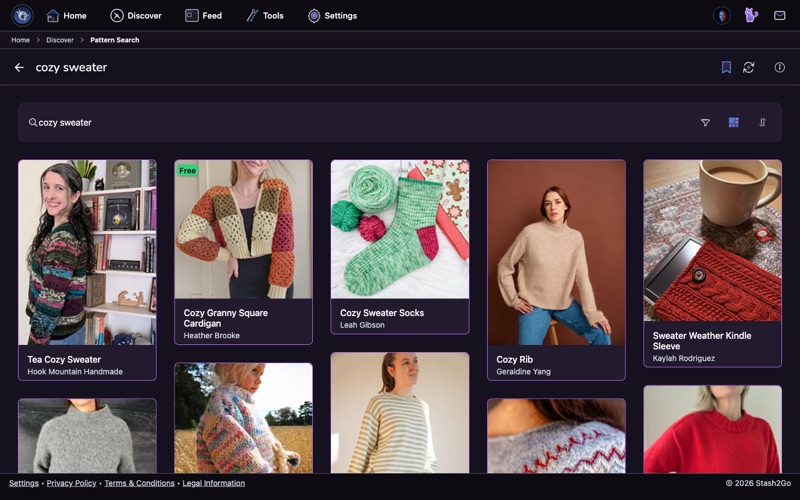
Tap Apply Filters and the results update to just the patterns that match everything you set.
Here are some real-world examples to get you started:
Craft: Knitting Weight: Worsted Category: Hat Availability: FreeCraft: Knitting Category: Sweater Difficulty: Easy Attribute: Top-DownCraft: Knitting Weight: Bulky Category: BlanketCraft: Knitting Weight: Fingering Category: Shawl Attribute: LaceCraft: Crochet Weight: DK Category: Blanket → Baby Blanket Availability: FreeCraft: Knitting Category: Mittens Colors: 3+ Attribute: StrandedCategory: Sweater.
Availability: Free filter. Ravelry has hundreds of thousands of free patterns.
Top-Down, Seamless, Worked Flat, or In the Round to find patterns that match your preferred technique.
Available on iPhone, iPad, Android, and web at app.stash2go.com