4I found a pattern I like
Explore yarn needs, photos, comments, stats, and start a project
A quick walkthrough of pattern details - see tabs, yarn info, photos, comments, and actions.
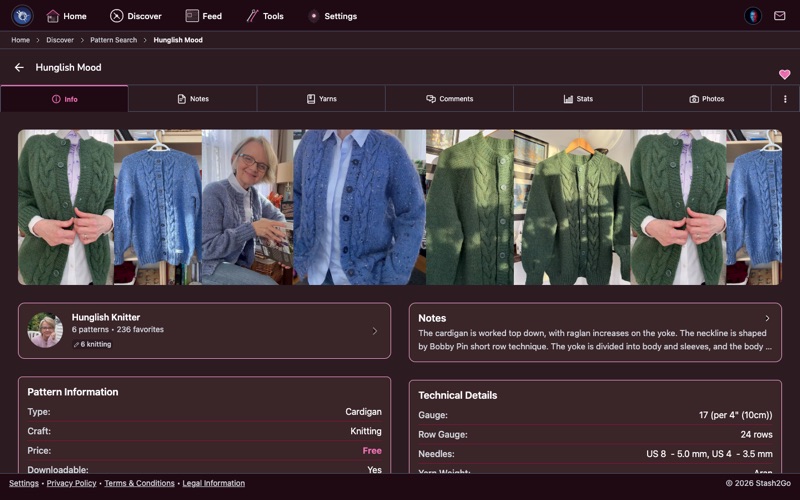
The Info tab is your starting point. It shows everything you need to decide if a pattern is right for you: yarn weight and yardage requirements, recommended gauge, available sizes, difficulty level, and the designer's description. Check the craft type (knitting or crochet) and weight category to make sure it matches yarn you have or plan to buy.
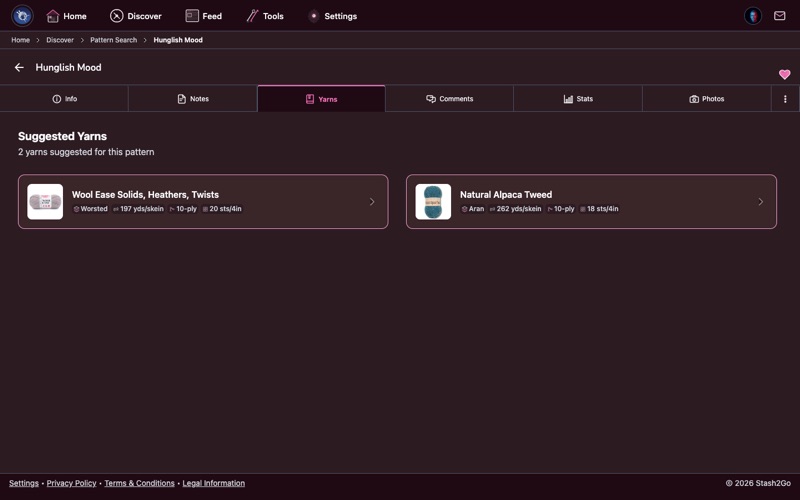
The Yarns tab lists the designer's recommended yarn and popular alternatives used by other crafters. Each entry shows the yarn name, weight, fiber content, and how many people used it. This is invaluable for finding a substitute if the original yarn is discontinued or out of your budget.
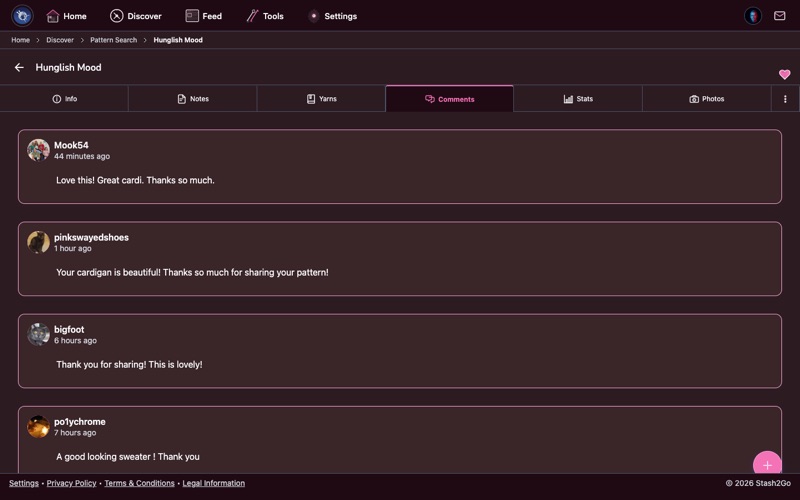
Read what other crafters have to say. Comments often include helpful tips about tricky sections, errata corrections from the designer, sizing adjustments, and suggestions for modifications. Reading through a few comments before starting can save you hours of frustration.
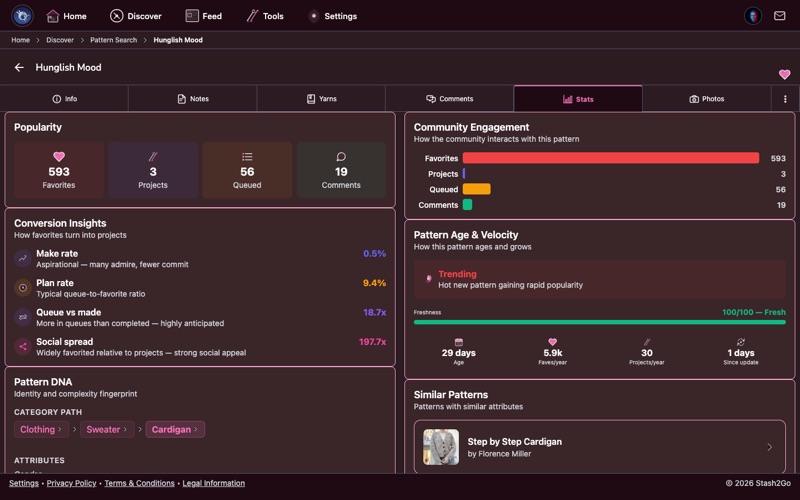
The Stats tab gives you the numbers: how many crafters have made this pattern, average rating, number of favorites, and popularity over time. A pattern with hundreds of completed projects and high ratings is usually a reliable choice. Low project counts might indicate a newer or more niche design.
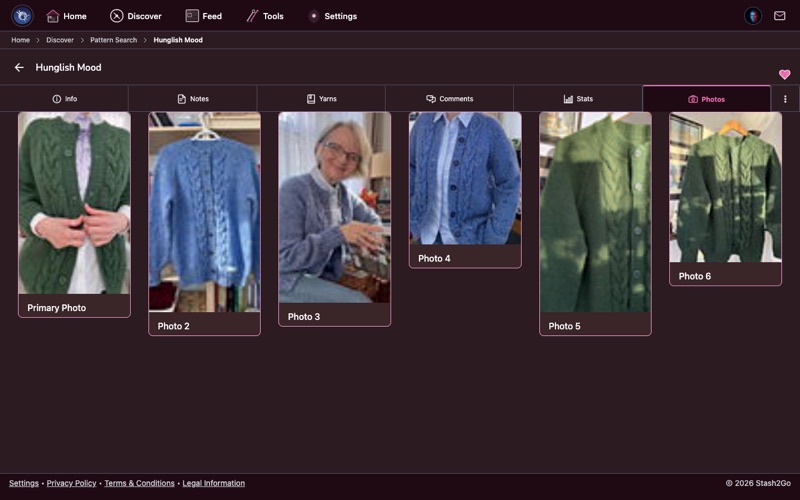
The Photos tab shows a gallery of finished objects made by the community. See how the pattern looks in different yarn colors, fiber types, and on different body types. This is the best way to visualize what your version might look like before you commit.
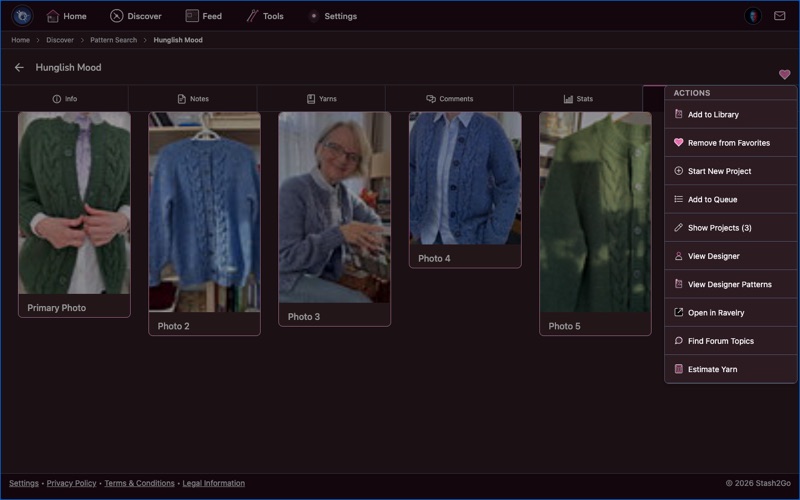
Tap the menu icon to see all available actions for this pattern. From here you can add it to your favorites, start a new project, add it to your library or queue, view the designer's other patterns, open it on Ravelry, and more. The actions adapt based on whether the pattern is free or paid.
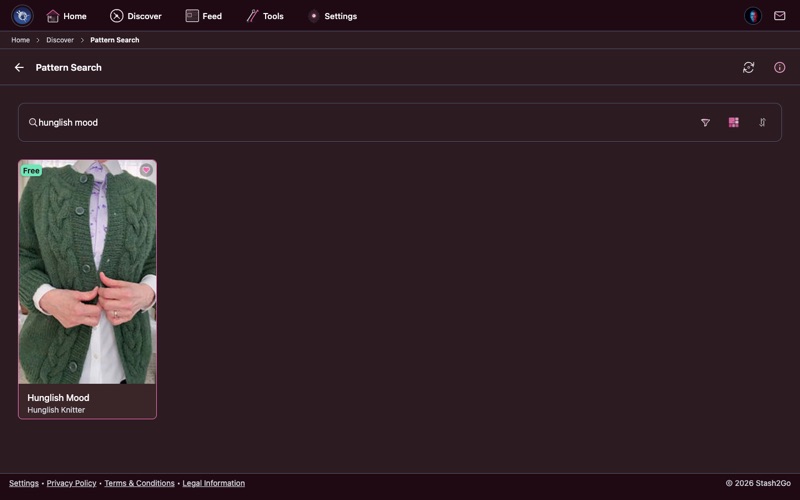
Tap the heart icon in the header to add a pattern to your favorites. Favorited patterns are saved to your Ravelry account and easy to find later. The heart turns red when a pattern is favorited. You can also add an optional comment, tags, and organize favorites into bundles - custom collections like "Summer Tops" or "Gift Ideas".
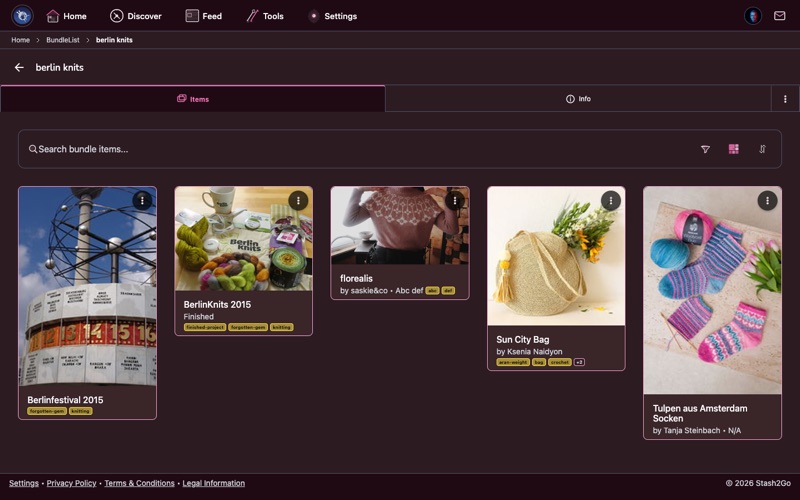
Open any bundle to see all the patterns you've collected in it. Bundles can be public (shared with the community), private (just for you), or friends-only. Each bundle shows its cover photo, description, and a list of all items. You can add or remove patterns, reorder them, and share the bundle with others.
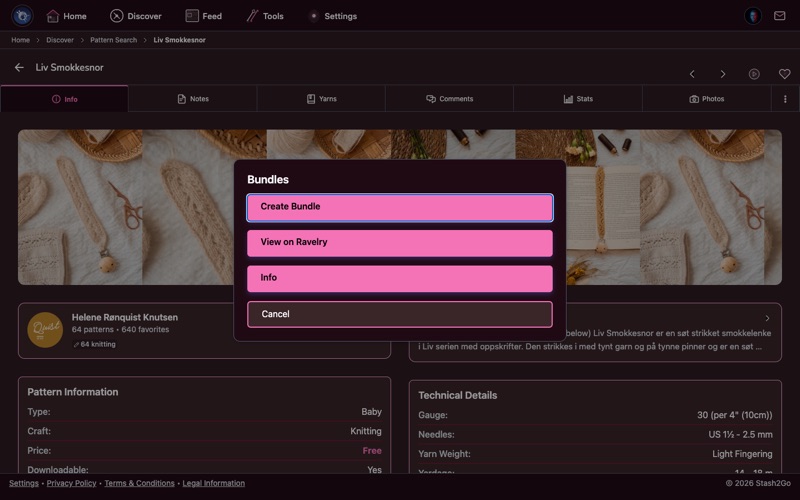
From your bundles, tap the menu to manage your collections. Create Bundle starts a new themed collection, View on Ravelry opens the bundle on the Ravelry website, and Info shows the bundle description and sharing settings. Bundles can be public, private, or friends-only.
Available on iPhone, iPad, Android, and web at app.stash2go.com